NextRep has a robust import/export system built-in, allowing you to quickly move between workout apps while keeping your historical data with you.
For converting data between apps, we have made a conversion tool. While, it’s not perfect, it does a great job at convering the most important data, such as workouts and exercises, between different app formats. It can, however, quickly fall out of sync with other apps without us realising.
The NextRep app imports and exports data as a standard JSON format with a structure that is specific to NextRep. This is usually similar for other apps too, where they export to a standard format which is easy to read, but the structure can differ between apps. The conversion tool helps convert between different app formats.
Import and Export from NextRep
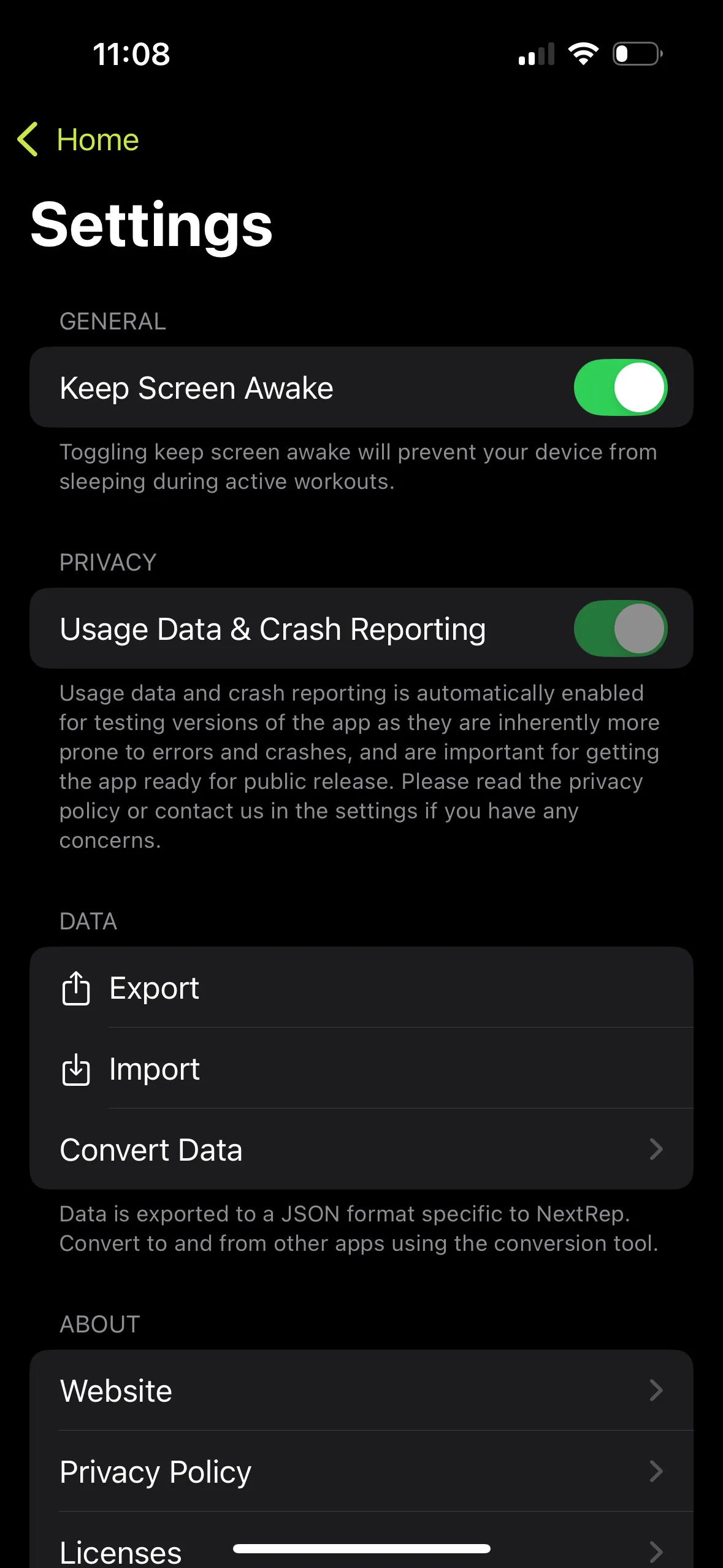
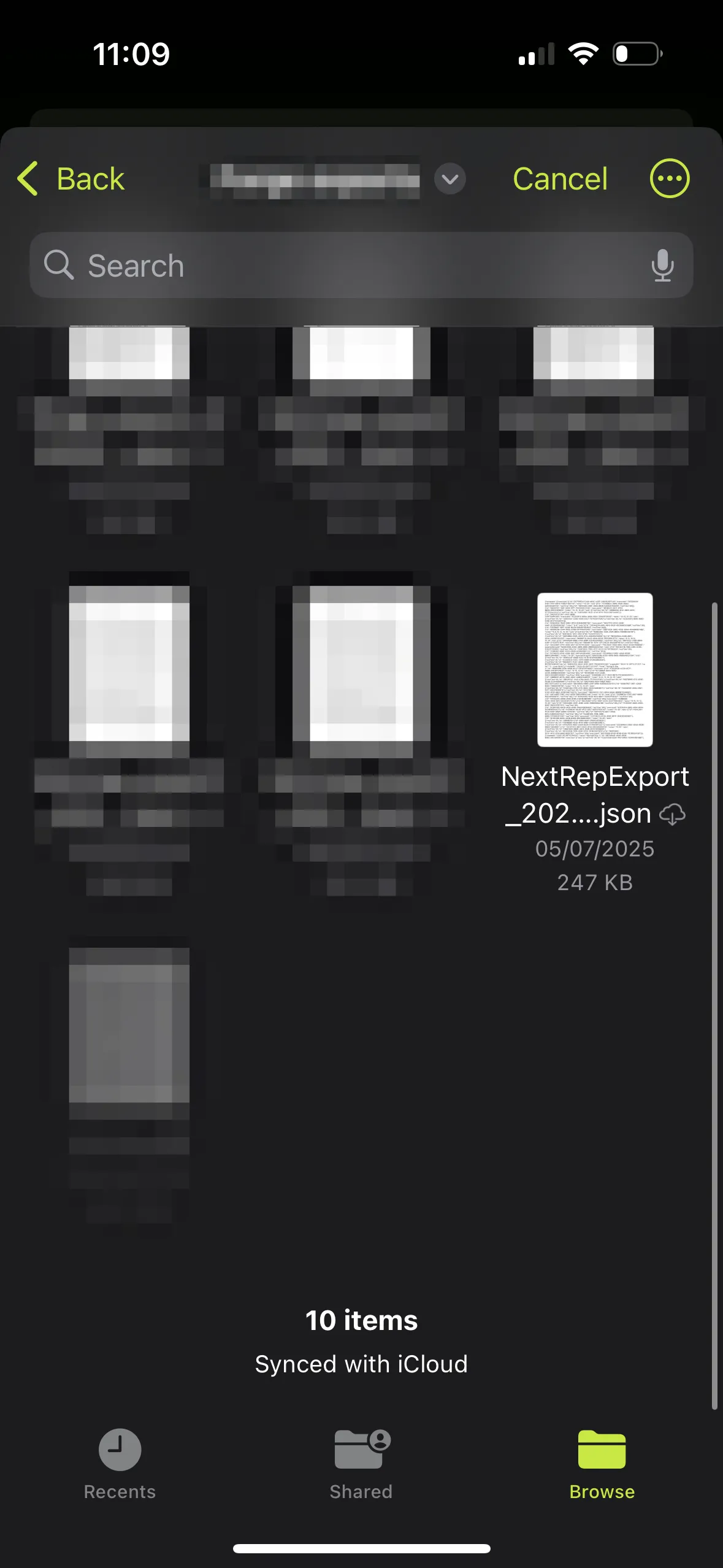
In the NextRep app, to export your data, head to the home screen of the app, then tap the settings icon in the top-right. In the settings page, under the data section, tap on export and choose a location to save your export to. It may take a few moments depending on the number of workouts you have in the app.
Similarly, for importing, head to the settings page, and under the data section, tap on import and choose a suitable JSON file to open.
Note: if you import the same data twice, the most recently imported data takes precedence. Using the conversion tool between different formats can change workout identifiers which can cause duplicates in some cases.
If you are a developer, you can find a JSON schema used by NextRep here.
Moving from NextRep to another app
See the previous section for creating an export from NextRep. Once you have a NextRep JSON export, you can use the conversion tool to convert the NextRep export to another app’s format.
On the left side of the conversion tool, select “NextRep” as the input format, then open the JSON export file. On the right side, choose your app for the output format. You can also choose to exclude parts of the export if you would like (leaving them as default does not remove anything).
You will now be able to download a converted copy of your data. Please follow any help from your new app for importing data.
Moving from another app to NextRep
Follow any help from your old apps for exporting data. There are a few sections below for specific apps.
Once you have an export from your old app, you can use the conversion tool to convert it to NextRep’s format.
On the left side of the conversion tool, select your old app as the input format, then open it’s export file. On the right side, choose “NextRep” as the output format. You can also choose to exclude parts of the export if you would like (leaving them as default does not remove anything).
You will now be able to download a NextRep export of your workout data. Head to the home screen of NextRep, then tap the settings icon in the top-right. In the settings pace, under the data section, tap on import and choose the downloaded JSON export from the conversion tool.
Strong
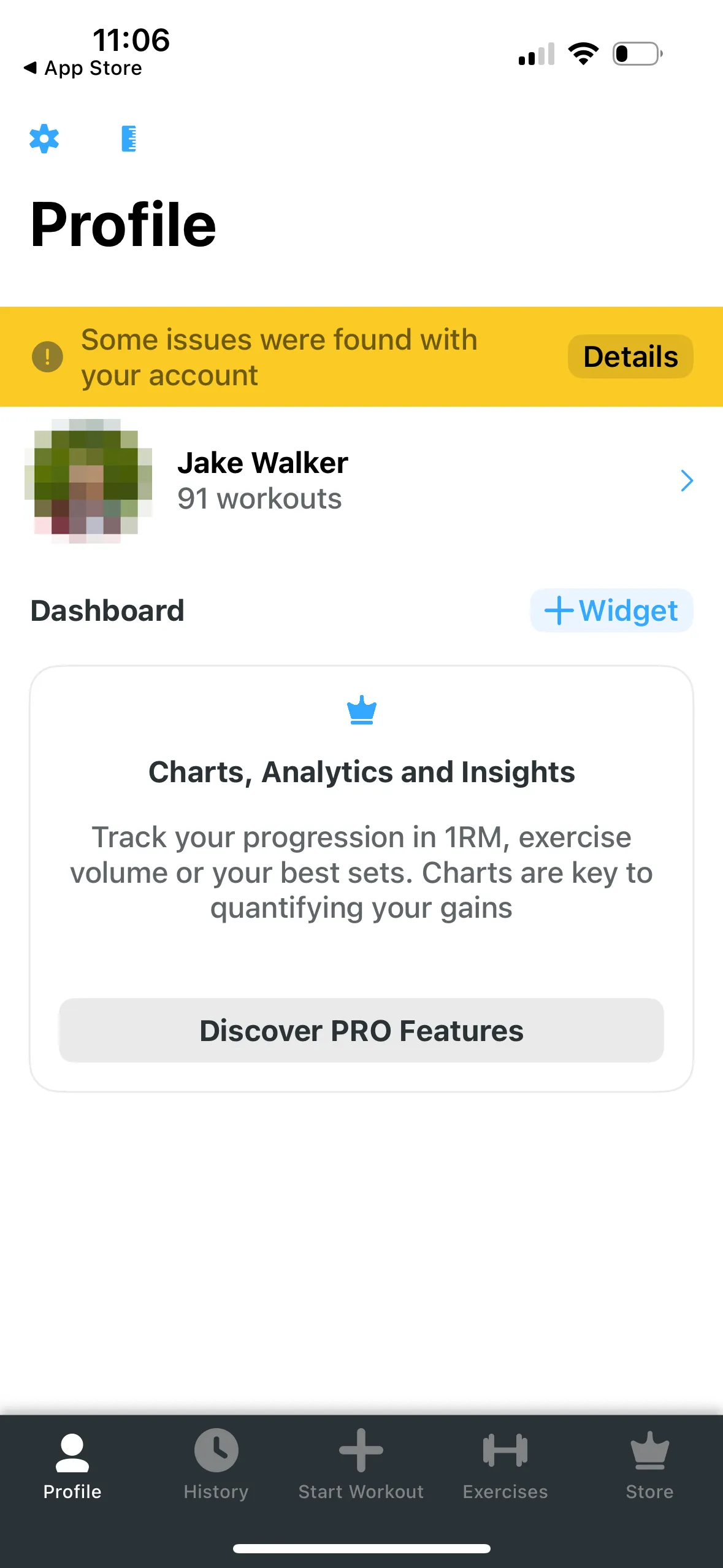
- Go to the “Profile” tab in the Strong app and tap the settings icon in the top-left of the screen.
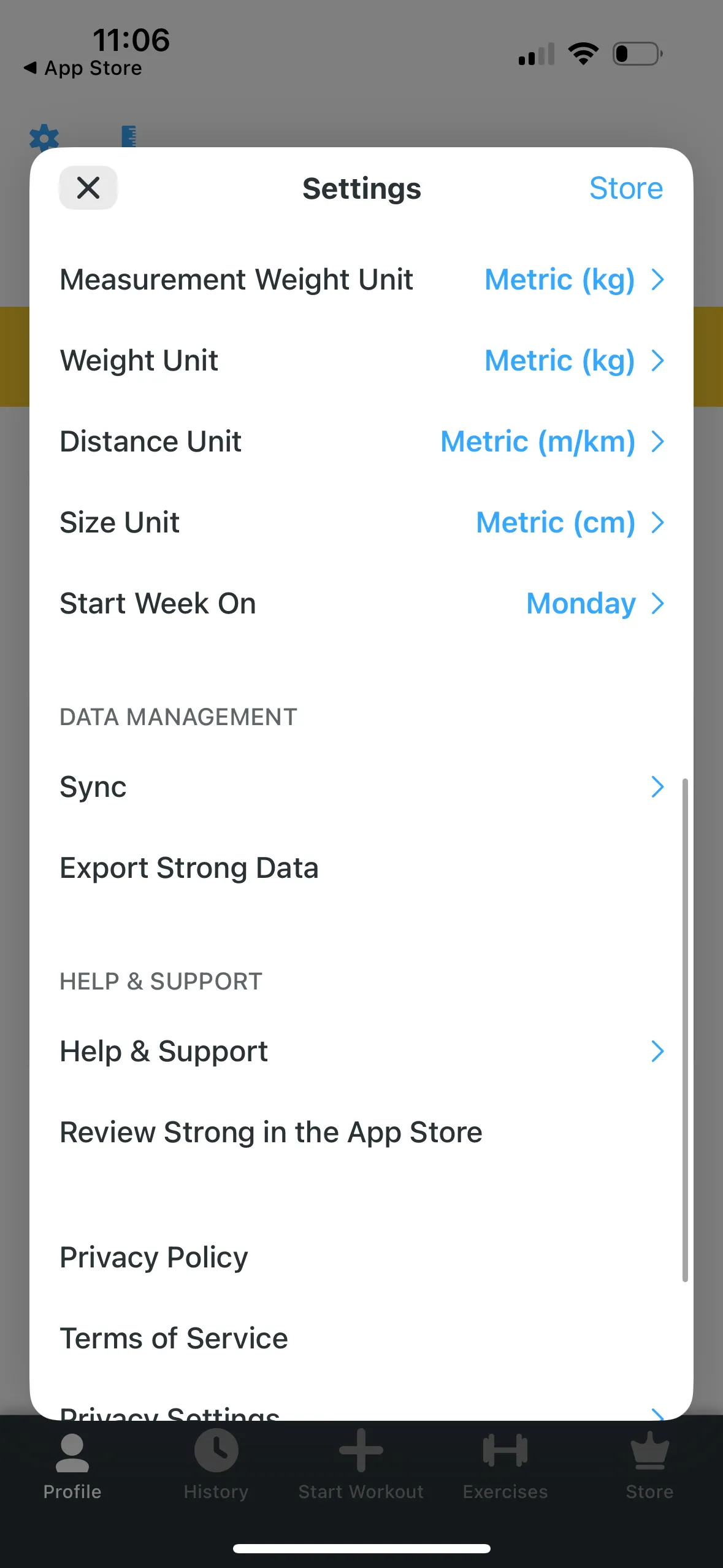
- On the settings page, scroll down to the “Data Management” section, and tap “Export Strong Data”.
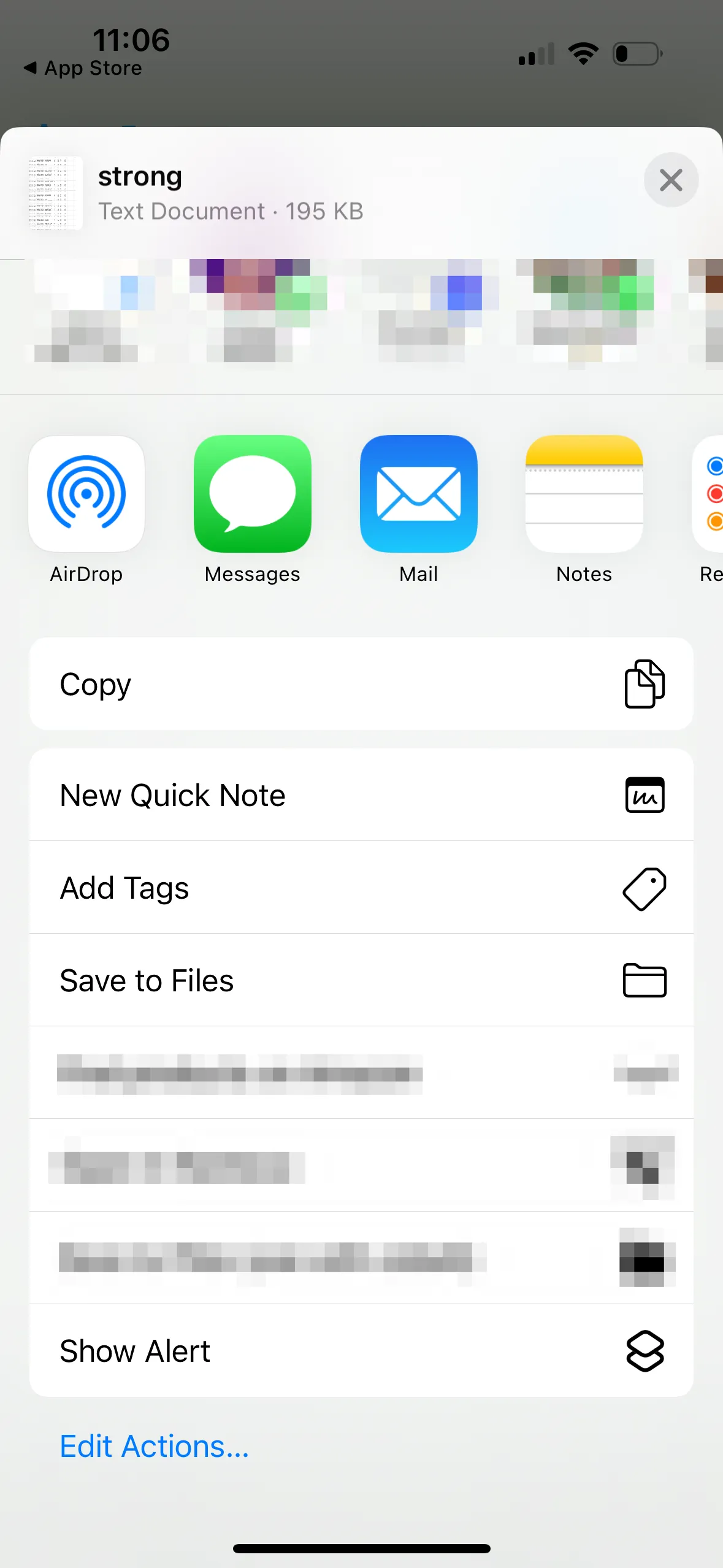
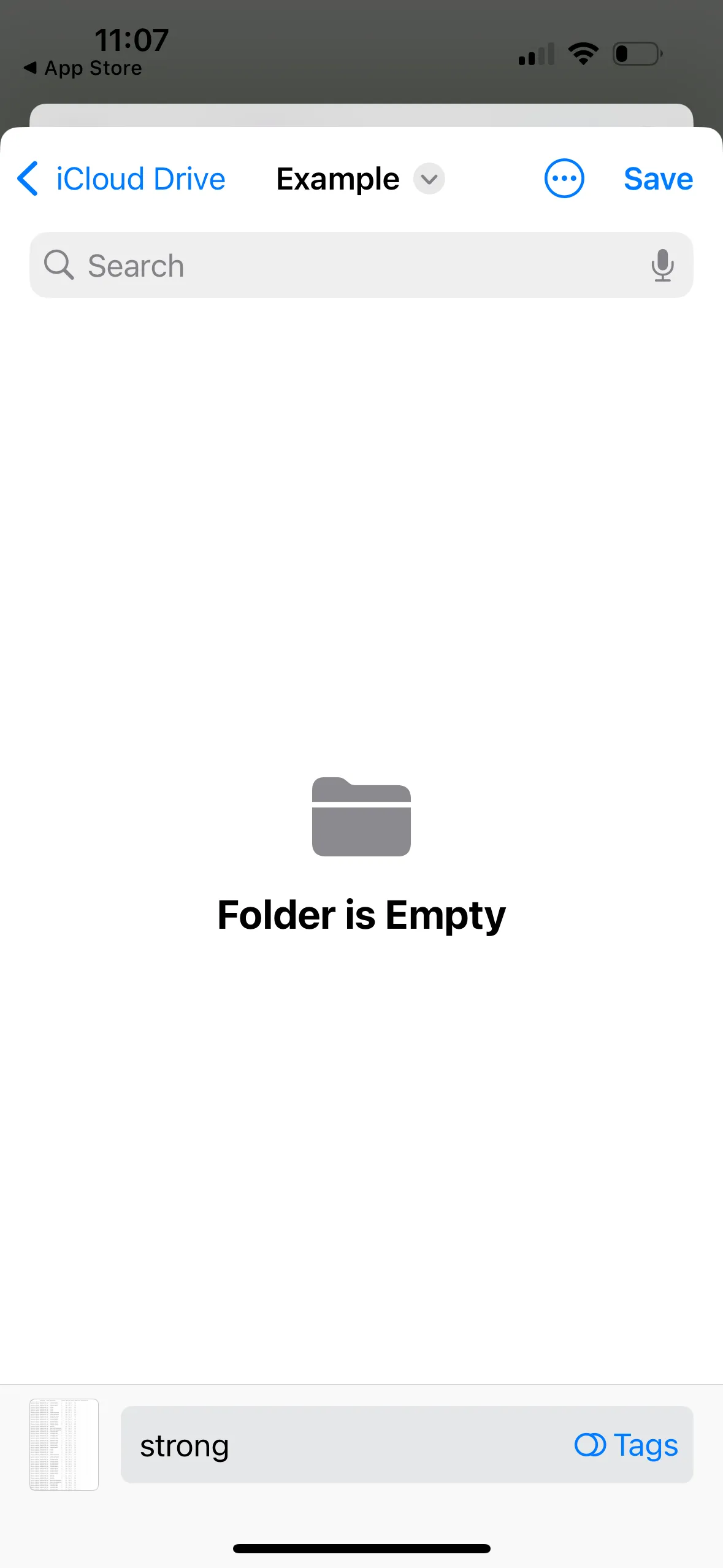
- On the share sheet that appears, scroll down and tap “Save to Files”, then choose a suitable location on your phone, such as the downloads folder, or in your iCloud drive.
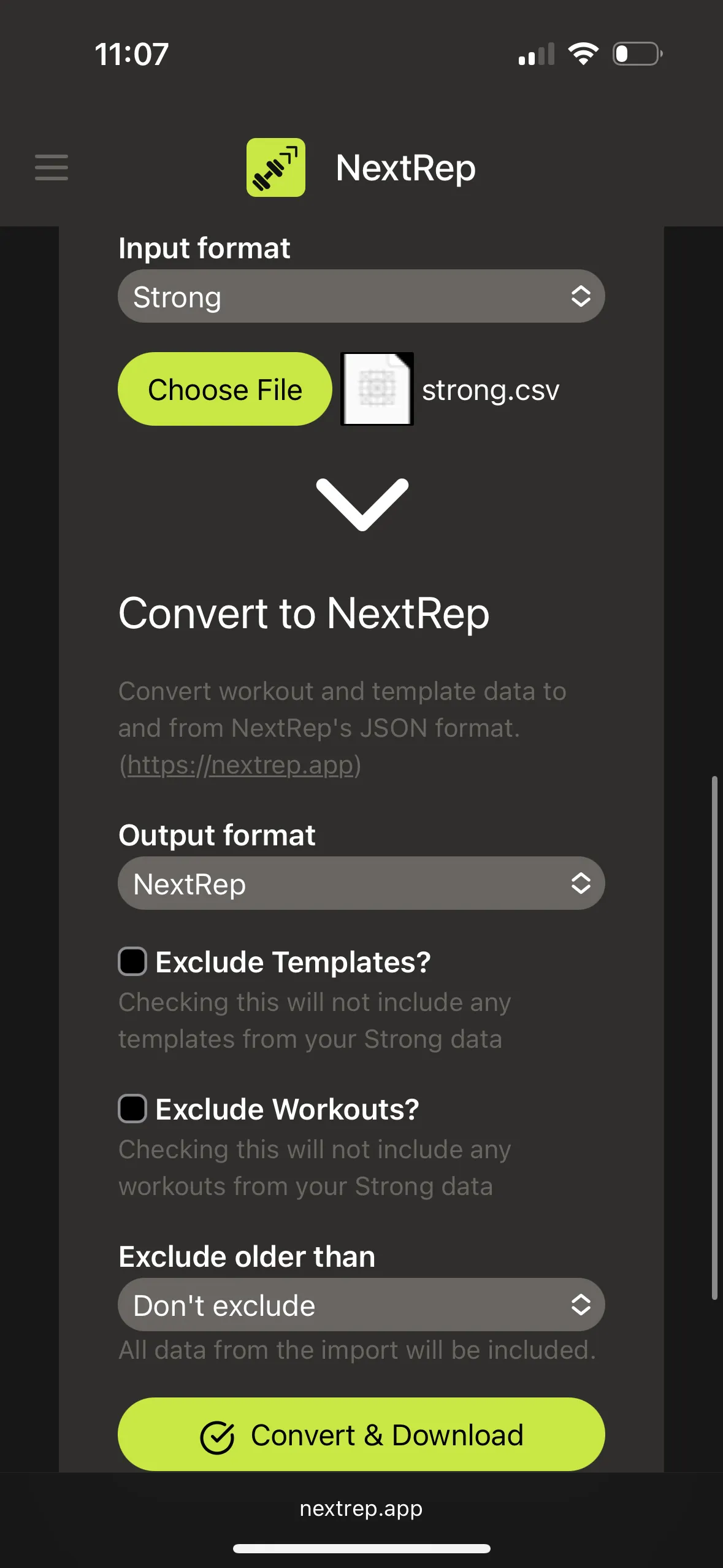
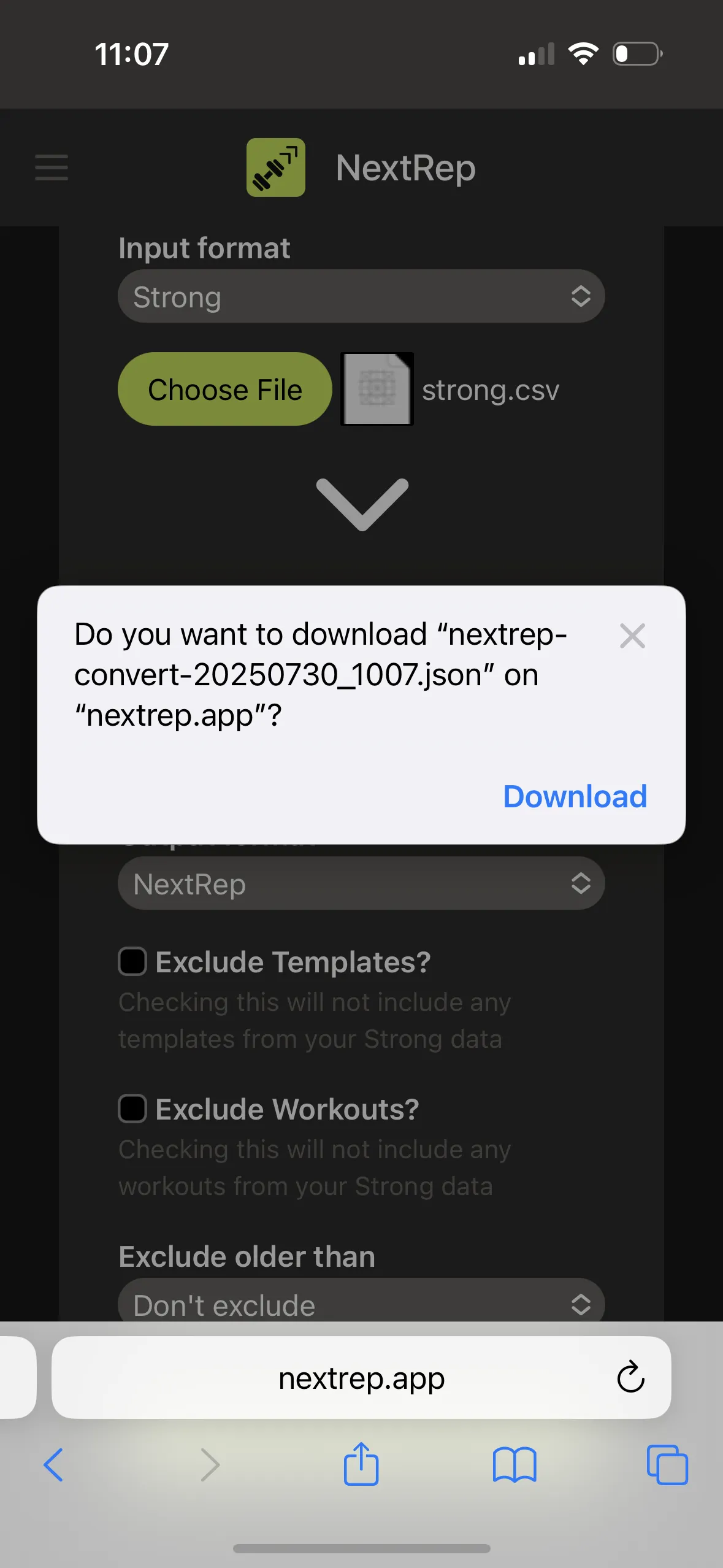
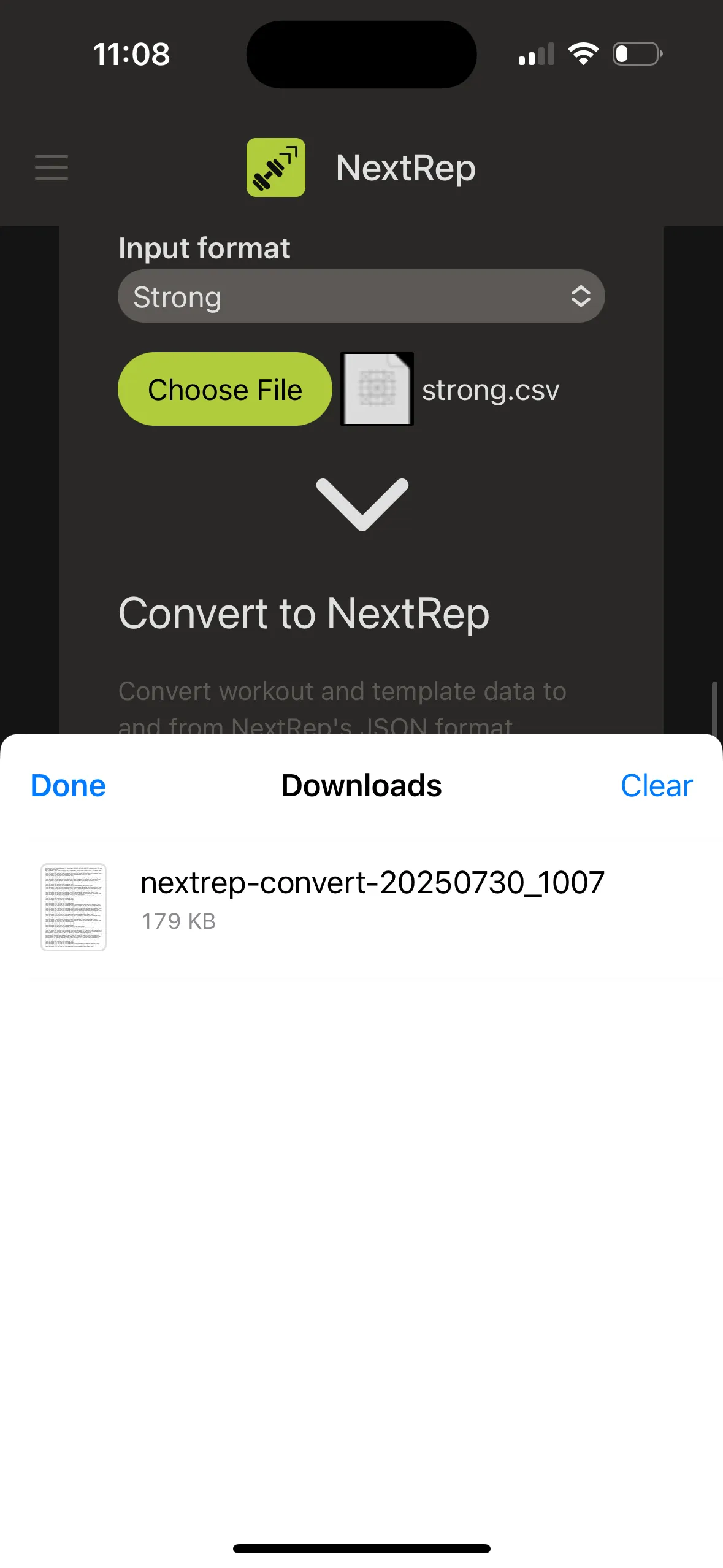
- Once saved, head to the conversion tool at https://nextrep.app/convert. Select “Strong” as the input format and “NextRep” as the output format. You may wish to exclude workouts older than a certain time if you are not bothered about keeping all of them. Press the “Convert & Download” button and download the file when prompted.
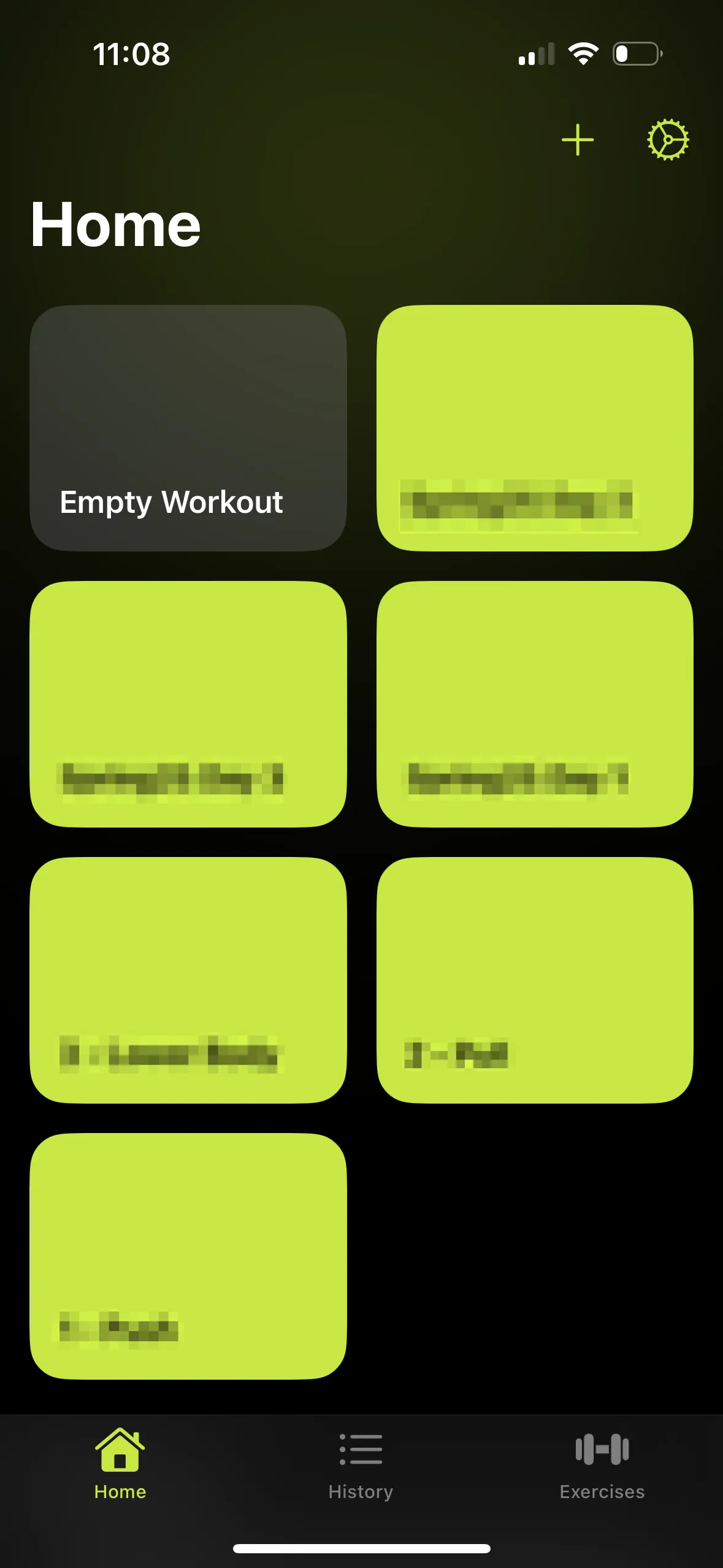
- Head to the NextRep app, then hit the settings icon in the top-right of the home screen.
- On the settings page, under the “Data” section, tap the “Import” button, then choose the recently downloaded data from the conversion tool. Wait a few moments for the import to complete.